 Supermail
Three ways to find any email
· Mac and iPhone
Supermail searches the mail on your device while you type, then asks Gmail for the rest. You can tell it what you want in three ways.
Results as you type
Press / on the Mac, or pull your inbox down on iPhone, and start typing. Matches from the mail saved on your device show up right away, before anything goes to Gmail.
On the Mac, ↓ picks one and Return opens it. Press Return with nothing picked and you get every result, including Gmail's. On iPhone, tap Search on the keyboard to ask Gmail.
1. Gmail's search words
Everything you use in Gmail works here: from:dana, has:attachment, after:2026/9/1, "an exact phrase" and the rest. Supermail sends the search to Gmail, so you get what Gmail would find.
2. Type a sentence
Type "invoices from Tom last month" and Supermail turns it into the right Gmail search. The line under the box shows the search it made. Tab lets you edit it, and ⇧Tab searches your own words instead.
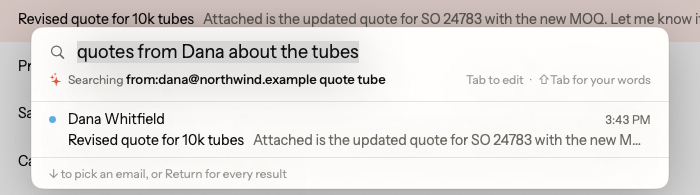
It understands:
- who sent it or got it, by name, from people you've emailed with
- dates like "last month", "since Monday" or "in August"
- unread and starred
- kinds of files: PDFs, spreadsheets, Word documents, slides and photos
It runs on your device with Apple Intelligence, and nothing it reads is sent to any AI service. It needs macOS 26 or iOS 26 with Apple Intelligence on, in a language it supports. Without it, search works exactly as you type it.
3. The search form (Mac)
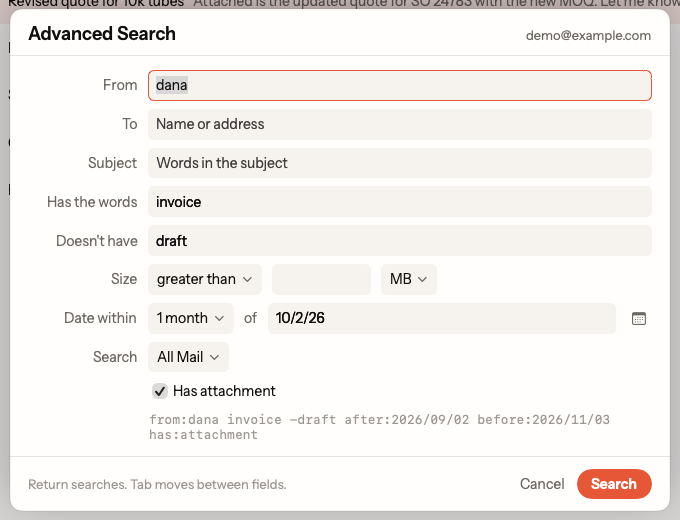
Click the sliders button in the search box, or press ⌘K and choose Advanced Search. Fill in any of From, To, Subject, Has the words, Doesn't have, size, a date range, where to look (All Mail, Inbox, Sent Mail, any label) and Has attachment. Tab moves between fields and Return searches.
Then deal with all of them
After a search, ⌘A selects every match, up to 1,000, including older ones that weren't on your device yet. Press E and they're all done.
Supermail is invite-only for now.
Request access