 Supermail
How Super Labels sort your inbox
· Mac and iPhone
Super Labels are the tabs along the top of your inbox on the Mac, and along the bottom on iPhone. They split one long inbox into a few short ones, so you can deal with each kind of email on its own.
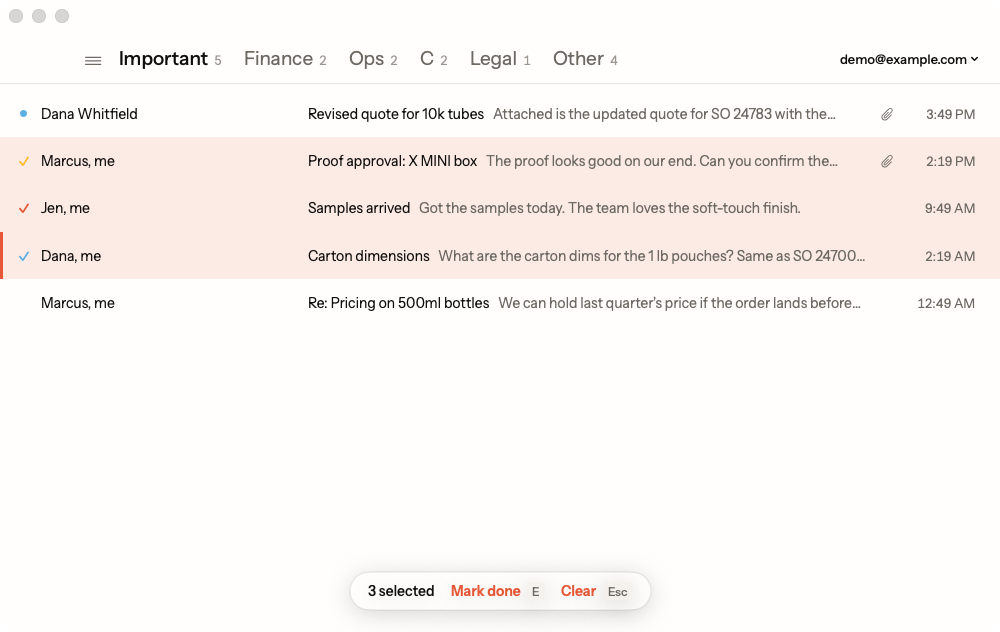
Important and Other
Every account starts with two:
- Other catches bulk mail you haven't answered: newsletters, notifications, receipts and anything from a noreply address. It also takes what Gmail files under Promotions, Social, Forums or Updates.
- Important gets everything else, which is mostly email from people.
The number next to each name is how many conversations are in it. Prefer one inbox? Settings → your account → Super Labels switches to "One Inbox tab".
Move between them
On the Mac, Tab goes to the next Super Label and ⇧Tab goes back. You can also click one. On iPhone, they sit at the bottom of the inbox, in reach of your thumb, and they're in the ☰ menu too.
Add your own (Mac)
Any Gmail label can be a Super Label. Mail with that label shows in its own tab instead of Important or Other.
- From an email: ⌘K → Make a Super Label from This Email fills in the sender. One click switches it to everyone at their company.
- From scratch: ⌘K → New Super Label. Fill in any of From, To, Subject and Has the words, the same way you'd search Gmail.
- From a label you already have: Settings → your account → Super Labels → Add Super Label.
When you make a new one, Supermail creates the Gmail label, puts it on the mail that matches now (up to the newest 5,000 emails), and opens the new tab. New mail that matches later won't get the label by itself yet. To label new mail as it arrives, add a filter for that label in Gmail.
In Settings → your account → Super Labels you can rename them, drag them into a new order, or remove one. Removing a Super Label never changes Gmail: the label stays, and its mail goes back to Important or Other.
Give them colors
Settings → Colors → Super Labels puts a colored dot by each name. Pick your own color, or use the label's color from Gmail.
A few things to know
- Super Labels belong to each account, so your work account and your personal account can be set up differently.
- They're kept on the Mac you set them up on. On iPhone, every account shows Important and Other for now.
Supermail is invite-only for now.
Request access